Excel Schedule: Creating Effective Staff Rosters
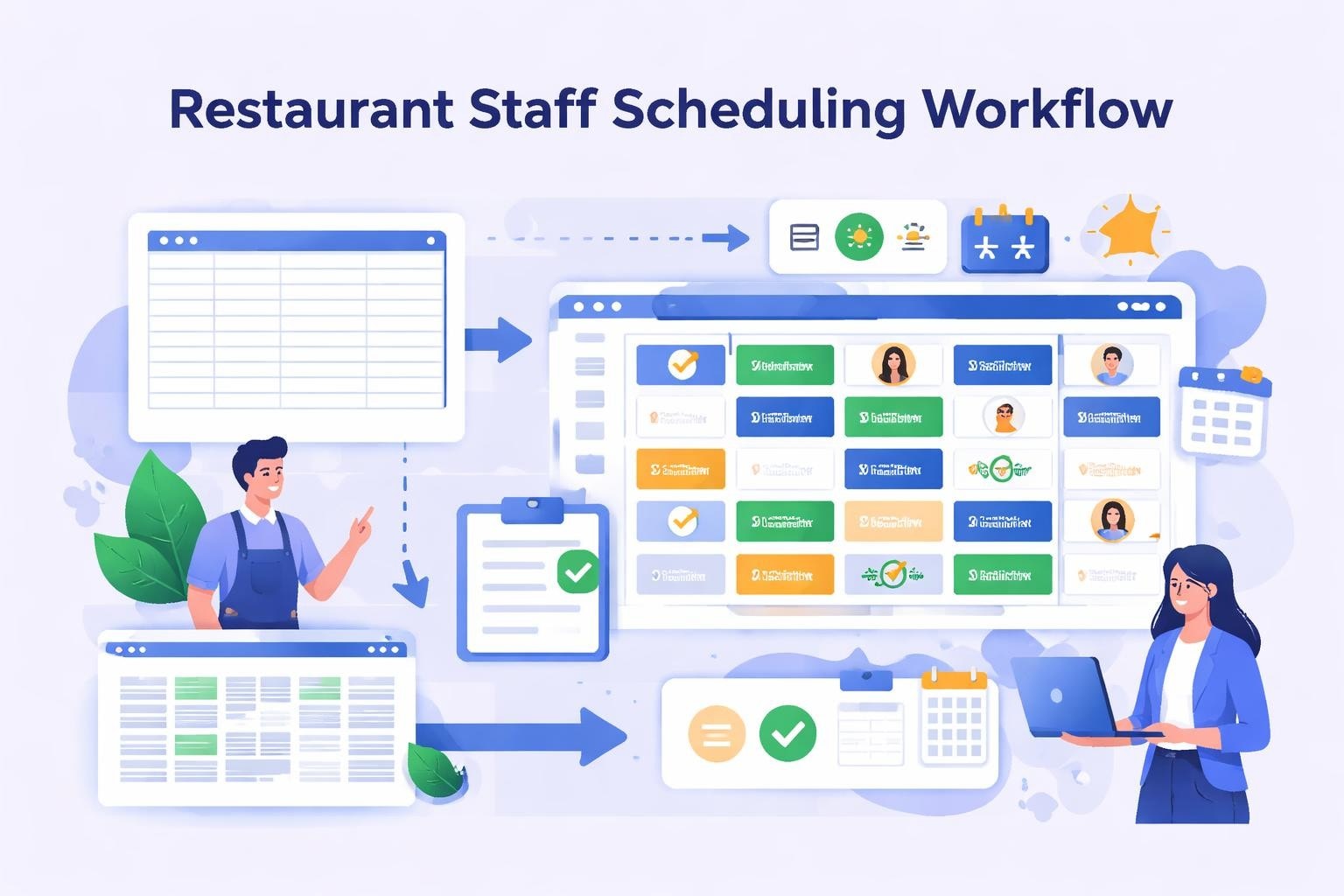
Learn how to create an excel schedule for your restaurant or service business. Discover templates, best practices, and tips for better workforce planning.
Managing staff schedules in restaurants, cafes, and service businesses requires careful planning and organization. Many managers turn to Microsoft Excel as their first scheduling tool because it's familiar, accessible, and doesn't require additional software investments. Creating an excel schedule can be an effective starting point for small teams, offering flexibility and customization that paper-based systems simply can't match. However, understanding both the capabilities and limitations of spreadsheet-based scheduling is essential for making informed decisions about your workforce management strategy.
Understanding the Basics of Excel Schedule Creation
Building an effective excel schedule starts with understanding your business needs and staffing requirements. The foundation involves creating a grid structure where dates or days occupy one axis while employee names or positions fill the other. This simple framework allows managers to assign shifts, track hours, and visualize coverage across different time periods.
Most restaurant and cafe managers begin with weekly schedules since service industry staffing patterns typically follow predictable weekly cycles. Your excel schedule should include essential information such as employee names, shift times, positions, and total hours worked. Additional columns can track special skills, certifications, or notes about availability.

Choosing the Right Schedule Template
Microsoft offers numerous schedule templates that provide pre-formatted structures for various scheduling needs. These templates save time by eliminating the need to build formatting from scratch. However, service industry schedules often require customization to accommodate multiple shifts, varying positions, and complex labor requirements.
When selecting or creating your excel schedule template, consider these critical elements:
Shift differentiation for breakfast, lunch, dinner, and late-night service
Position tracking to ensure adequate coverage for servers, cooks, bartenders, and hosts
Skills matrix to identify who can work which stations
Availability indicators showing requested time off or scheduling preferences
Labor cost calculations to stay within budget constraints
The right template structure depends on your operation size and complexity. A small cafe with ten employees has different needs than a full-service restaurant managing fifty staff members across multiple shifts.
Creating Your First Excel Schedule
Creating a work schedule in Excel follows a systematic process that ensures accuracy and completeness. Start by opening a new workbook and establishing your date range. Most managers find weekly views most practical, though bi-weekly schedules help employees plan further ahead.
Step-by-Step Schedule Building
Begin by formatting your spreadsheet with clear headers and logical organization. The top row should contain days of the week or specific dates. The leftmost column lists employee names, preferably organized by position or department. This structure creates a grid where each cell represents a specific employee's assignment for a particular day.
Set up your date headers with proper formatting to display days and dates clearly
List all employees organized by role or alphabetically for easy reference
Define shift codes using abbreviations like "AM" for morning or "PM" for evening
Enter shift assignments for each employee on their scheduled days
Add formulas to calculate total weekly hours for each employee
Include a summary section showing total coverage hours by position
Your excel schedule becomes more powerful when you incorporate formulas that automatically calculate totals. Use SUM functions to track individual employee hours and COUNT functions to verify adequate shift coverage. Conditional formatting can highlight understaffing situations or overtime concerns.
Function | Purpose | Example Formula |
|---|---|---|
SUM | Calculate weekly hours | =SUM(B2:H2) |
COUNT | Verify shift coverage | =COUNT(B2:B20) |
IF | Flag overtime situations | =IF(I2>40,"OT","") |
VLOOKUP | Pull wage rates | =VLOOKUP(A2,Rates,2,FALSE) |
Advanced Excel Schedule Techniques
Once you've mastered basic excel schedule creation, advanced techniques can significantly improve efficiency and accuracy. Conditional formatting transforms your schedule into a visual management tool that quickly identifies problems. Color-coding different positions, highlighting scheduling conflicts, or flagging potential overtime situations makes information immediately accessible.
Optimizing Coverage and Costs
Understanding labor costs for restaurants is crucial when building schedules. Your excel schedule can incorporate labor cost tracking by adding employee wage rates and calculating projected costs for each shift and day. This financial visibility helps managers balance adequate coverage with budget constraints.
Creating formulas that multiply scheduled hours by hourly rates provides real-time cost projections. Advanced schedules might include separate calculations for regular time and overtime, applying appropriate multipliers automatically. Some managers even build in productivity metrics, comparing sales forecasts against scheduled labor hours.
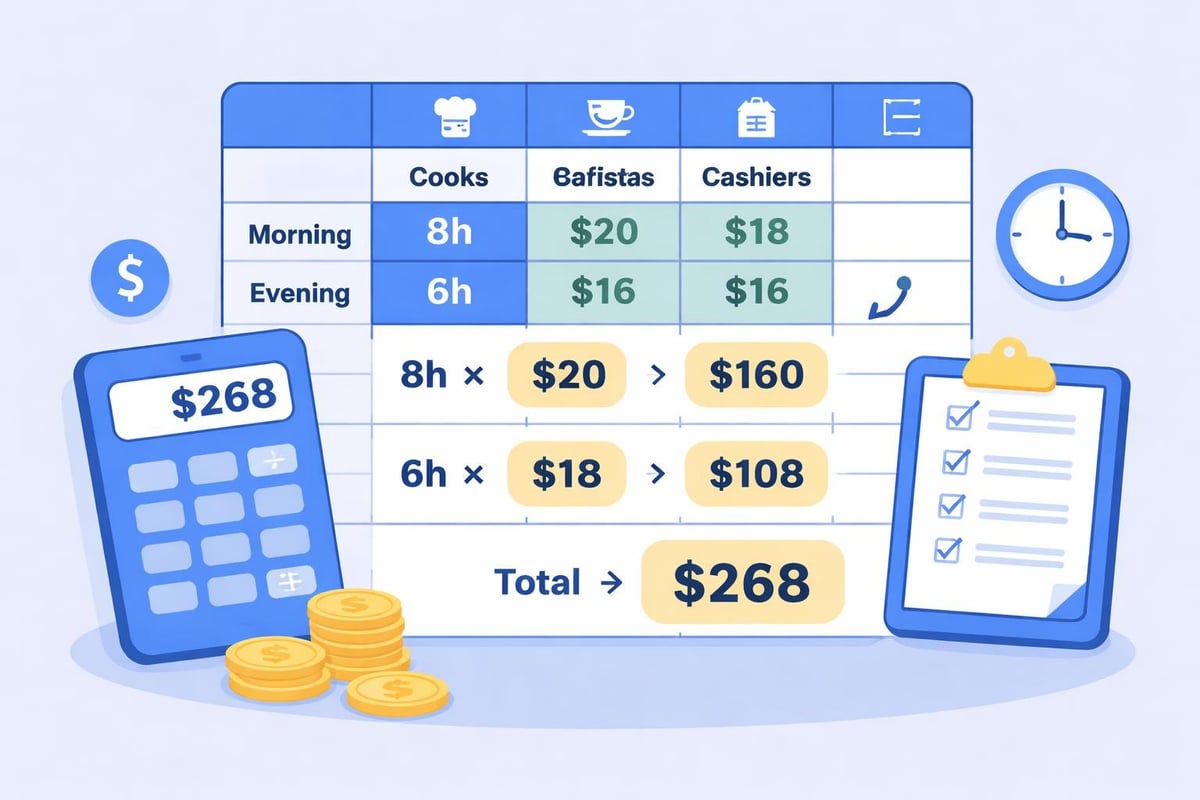
The Solver tool in Excel offers sophisticated optimization capabilities for creating schedules that minimize costs while meeting coverage requirements. This add-in analyzes constraints like minimum staffing levels, maximum hours per employee, and availability restrictions to generate optimal schedules. While powerful, Solver requires understanding of optimization principles and careful constraint definition.
Managing Availability and Time-Off Requests
An effective excel schedule must accommodate employee availability and time-off requests. Create a separate worksheet tracking availability restrictions, then reference this data when building schedules. Simple VLOOKUP formulas can check whether an employee is available before assigning shifts, preventing scheduling conflicts.
Time-off requests require systematic tracking to ensure fairness and adequate coverage. Many managers maintain a separate tab listing approved time-off by employee and date, using conditional formatting to highlight requested days on the main schedule. This visibility prevents accidental assignments during approved absences.
Common Challenges with Excel Scheduling
While an excel schedule provides flexibility and no-cost implementation, several challenges emerge as businesses grow or scheduling complexity increases. Understanding these limitations helps managers make informed decisions about when to enhance their scheduling approach.
Version Control and Collaboration Issues
One significant challenge involves version control when multiple managers contribute to schedule creation. Email attachments create confusion about which file contains the latest information. Employees checking different versions might see conflicting shift assignments, leading to no-shows or overstaffing.
Cloud storage solutions like OneDrive or SharePoint partially address this issue by enabling shared access to a single file. However, simultaneous editing can corrupt data or overwrite changes. These collaboration challenges intensify with larger teams or multi-location operations.
Version confusion from multiple file copies circulating via email
Simultaneous editing conflicts when multiple managers update schedules
Limited access controls making it difficult to restrict editing permissions
No automatic backups risking data loss from accidental deletions
Difficult mobile access since Excel files don't display well on phones
Calculation Errors and Formula Breaks
Excel schedules rely heavily on formulas for hour totals, cost calculations, and coverage verification. These formulas break easily when users insert rows, delete columns, or modify the spreadsheet structure. Broken formulas lead to incorrect hour calculations, potentially causing payroll errors or compliance violations.
Manual data entry introduces additional error risks. A mistyped shift time or accidentally cleared cell can cascade through dependent calculations. Unlike dedicated scheduling software, Excel provides minimal error checking or validation for scheduling logic.
Best Practices for Excel Schedule Management
Implementing best practices for employee scheduling maximizes the effectiveness of your excel schedule while minimizing common pitfalls. Consistency in formatting, naming conventions, and update procedures creates reliability and reduces errors.
Standardization and Documentation
Develop clear standards for how information appears in your excel schedule. Use consistent abbreviations for shifts, standardized date formats, and uniform color schemes. Document these standards in a separate worksheet so anyone accessing the schedule understands the conventions.
Create a master template that includes all formulas, formatting, and structure. Each new scheduling period starts by copying this template rather than modifying existing schedules. This approach prevents formula degradation and maintains consistency across weeks or months.
Best Practice | Benefit | Implementation |
|---|---|---|
Locked cells | Prevents accidental formula deletion | Protect worksheet with formula cells locked |
Data validation | Ensures correct shift codes | Create dropdown lists for shift entries |
Backup copies | Protects against data loss | Save weekly versions with date stamps |
Clear legends | Improves understanding | Add key explaining codes and colors |
Regular audits | Catches errors early | Review formulas monthly for accuracy |
Communication and Distribution
How you share your excel schedule significantly impacts its effectiveness. Email distribution reaches employees but lacks confirmation that recipients actually received or viewed the schedule. Some managers post printed schedules in break rooms, though this approach doesn't work for employees needing advance notice for personal planning.
Consider shift swapping protocols when using excel schedules. Establish clear procedures for how employees request and document shift trades. Without automated systems, managers must manually update the excel schedule and verify both employees confirmed the swap.
Process flow showing how an excel schedule moves from manager creation through approval, distribution to employees, and handling of change requests or shift swaps
When to Move Beyond Excel Schedules
Recognizing when your business has outgrown excel schedule capabilities is crucial for maintaining operational efficiency. Warning signs include spending excessive time on schedule creation, frequent communication breakdowns about shift assignments, or recurring payroll errors from inaccurate hour tracking.
Evaluating Alternative Solutions
Many restaurants and service businesses successfully use excel schedules during their early stages. However, growth in employee count, locations, or operational complexity often necessitates more robust solutions. Modern scheduling platforms designed specifically for service industries offer features impossible to replicate in spreadsheets.
Consider transitioning from your excel schedule when you experience:
More than 20-25 employees making schedule complexity unmanageable
Multiple locations requiring coordinated scheduling across sites
High turnover demanding frequent schedule template updates
Compliance concerns around labor laws and break requirements
Mobile access needs since employees expect smartphone schedule viewing
Dedicated scheduling software provides automated features like shift reminders, instant schedule updates, integrated time tracking, and labor law compliance checking. These capabilities eliminate many pain points associated with excel schedules while improving accuracy and reducing administrative time.
Integration and Automation Benefits
Modern alternatives to excel schedules integrate with other business systems, creating seamless data flow. Time tracking connects directly to schedules, automatically capturing clock-ins and flagging late arrivals. Payroll integration eliminates manual hour transcription, reducing errors and saving administrative time.
Exploring open source employee scheduling options reveals various alternatives between basic excel schedules and enterprise-grade systems. These solutions often provide middle-ground functionality suitable for growing businesses not yet ready for significant software investments.
Optimizing Your Excel Schedule Workflow
Even if you continue using an excel schedule, optimization strategies can significantly improve efficiency and accuracy. Detailed scheduling tutorials demonstrate advanced techniques for customizing templates to match your specific operational needs.
Template Customization Strategies
Customize your excel schedule template to reflect your business reality rather than forcing operations into generic formats. Add columns for specific positions unique to your establishment, create sections for different service periods, or incorporate notes fields for special instructions.
Build separate worksheets within your scheduling workbook for different functions. One tab holds the current schedule, another tracks employee availability, a third manages time-off requests, and a fourth calculates labor costs. Link these worksheets with formulas that pull relevant information automatically.
Consider creating multiple template variations for different situations. A standard week template differs from holiday schedules or special event staffing. Monthly schedule formats provide longer planning horizons useful for certain industries, though weekly views often work better for restaurants with variable demand.
Efficiency Tips and Shortcuts
Mastering Excel shortcuts dramatically reduces time spent building schedules. Learn keyboard commands for common tasks like copying cells, inserting rows, or applying formatting. These seconds saved per action accumulate significantly across weekly schedule creation.
Keyboard shortcuts every scheduler should know:
Ctrl+D fills down from the cell above
Ctrl+R fills right from the cell to the left
Ctrl+; inserts current date
Ctrl+Shift+; inserts current time
Alt+= creates a SUM formula automatically
F4 repeats the last action performed
Using named ranges makes formulas more readable and easier to maintain. Instead of referencing cell ranges like B2:B50, name the range "EmployeeHours" for clearer formula construction. This practice particularly helps when others need to understand or modify your excel schedule.
Real-World Excel Schedule Applications
Understanding how different service businesses apply excel schedules provides practical insights. A small cafe with consistent staffing needs successfully manages scheduling in Excel differently than a restaurant with fluctuating demand patterns.
Case Study: Small Cafe Implementation
A neighborhood cafe with twelve employees uses a weekly excel schedule template customized for morning and afternoon shifts. The manager maintains separate tabs for availability restrictions and requested time-off, using simple formulas to check conflicts before finalizing assignments.
Their template includes labor cost projections calculated by multiplying scheduled hours by position-specific wage rates. This financial visibility ensures the schedule stays within their target labor percentage. Color coding distinguishes trained baristas from servers, making coverage verification quick and visual.
Case Study: Full-Service Restaurant Challenges
A busy restaurant with forty employees across multiple positions found excel schedules increasingly problematic. Version control issues led to confusion about shift assignments. Complex rotation requirements for different stations made formula management difficult. Manual hour totaling for payroll consumed hours each week.
After evaluating scheduling and planning software designed for their industry, they transitioned to a dedicated platform. The change reduced scheduling time by 60% while improving accuracy and employee satisfaction through mobile schedule access.
Maintaining Schedule Accuracy and Compliance
Your excel schedule must support compliance with labor regulations governing breaks, overtime, and scheduling practices. Manual tracking of these requirements increases error risk compared to automated compliance checking in dedicated systems.
Build verification formulas that flag potential violations before they occur. Calculate consecutive days worked, highlight schedules exceeding maximum hours, or identify missing required breaks. While not foolproof, these checks add protective layers against compliance issues.
Different jurisdictions impose varying scheduling requirements, from predictive scheduling laws to mandatory rest periods. Your excel schedule should incorporate local regulations relevant to your location. Consult current labor law requirements and adjust template logic accordingly.
While an excel schedule offers accessibility and flexibility for managing restaurant and service industry staffing, understanding both its capabilities and limitations ensures you're making the best choice for your operation. As your business grows in complexity or employee count, the time invested in manual scheduling and the risks of errors may outweigh Excel's no-cost advantage. Heybegin provides purpose-built scheduling solutions that eliminate spreadsheet limitations while offering real-time updates, mobile access, automated time tracking, and seamless payroll integration designed specifically for restaurants, cafes, and service businesses. Explore how modern scheduling technology can reduce your administrative burden while improving accuracy and employee satisfaction.